How it works
Create an invoice
Add the client, work details, line items, due date, and any notes.
Share the bill
Email the invoice with a View Invoice link and a PDF copy.
See what is due
Clients can open the invoice and check the project payment schedule.
Pay and track status
Clients can pay online when enabled. Contractors can record an external payment against an outstanding invoice.
A clear invoice for both sides
Contractors can create an invoice from a project, add line items, apply configured markups, and save it as a draft or save and send it. The invoice document shows the business and client, service details, due date, itemized work, total, and notes. Contractors can also edit or cancel an unpaid invoice and record a payment received outside the app.
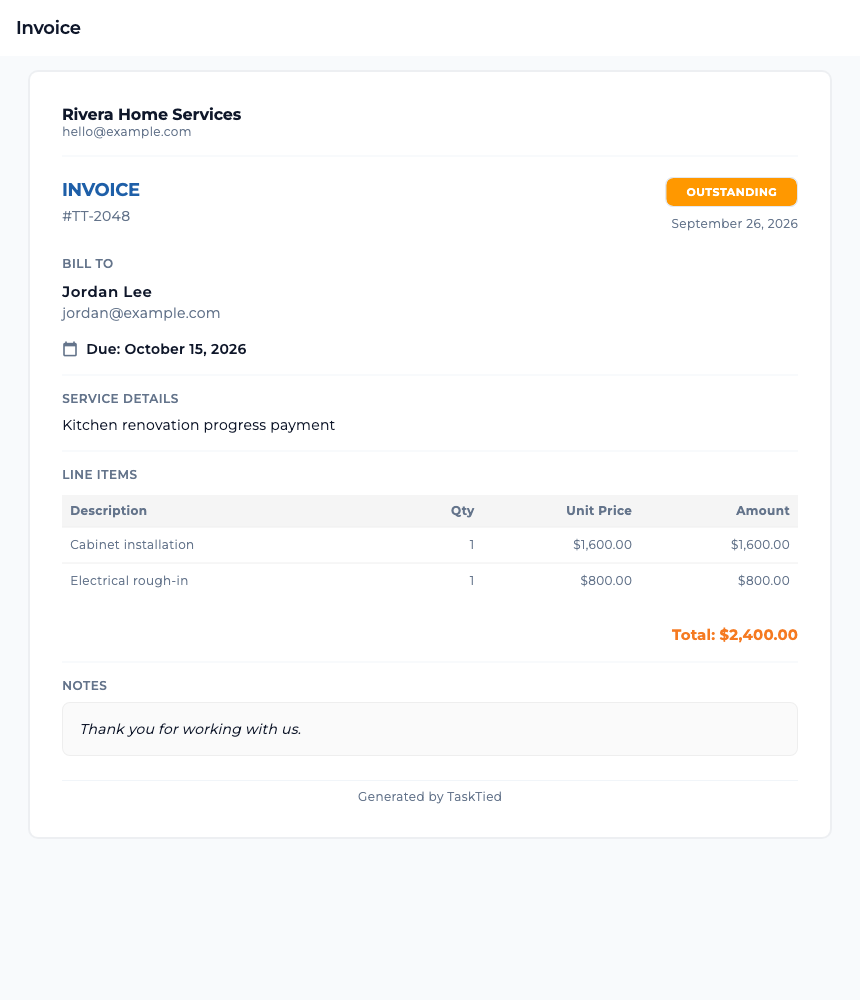
When an invoice is sent, the client receives an email with a View Invoice link and an attached PDF. Sent invoices can also be opened from TaskTied. Draft invoices remain private to the contractor.
Record a payment received elsewhere
If a client pays outside TaskTied, a contractor assigned to the project can open the outstanding or overdue invoice and choose Record Payment. Confirm the full invoice amount, select the date the payment was received, choose a method such as cash, check, credit, bank transfer, or Venmo, then select Add. TaskTied marks the invoice paid and stores the recorded date and method.
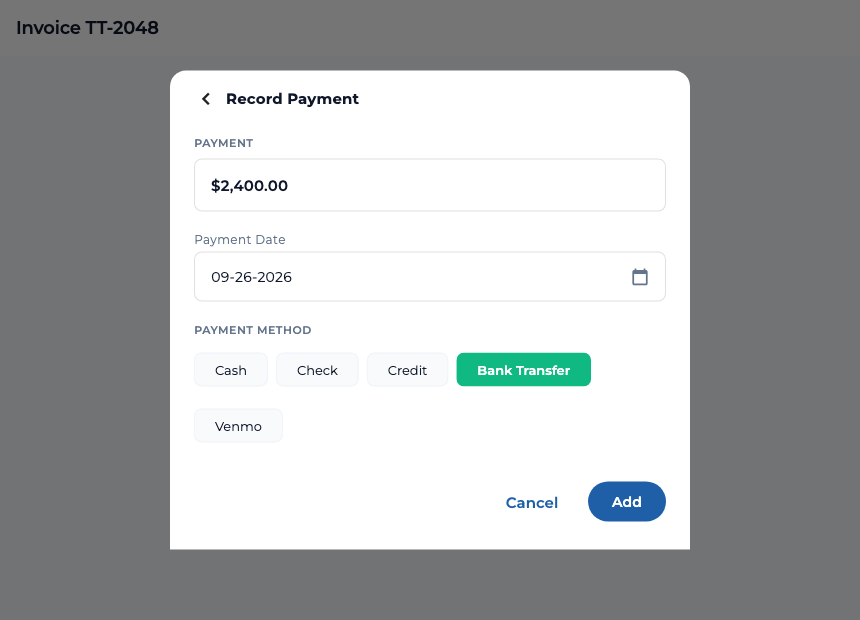
Recording a payment documents money already received; it does not charge the client through Stripe. The action applies to the full outstanding invoice, so use it after confirming payment.
Plan deposits and later payments
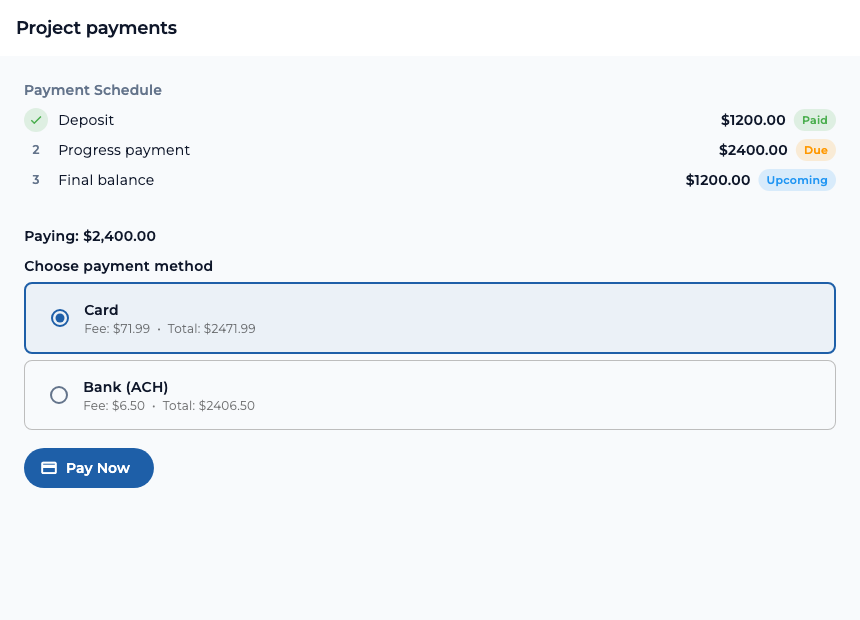
A project can have a payment schedule, such as a deposit, progress payment, and final balance. The Payments tab shows each installment and its current state. It can link an installment to its invoice, making it easier to see which part of the project has been paid and which is still due.
Set up Stripe payments as a contractor
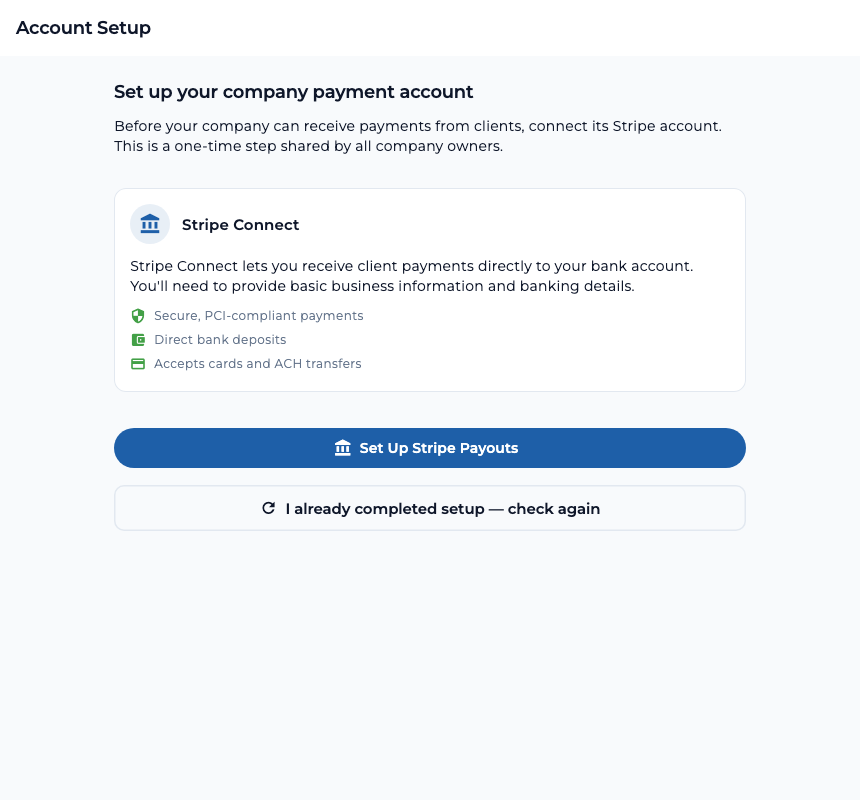
A company owner completes the one-time Stripe Connect setup for the company. From the Account Setup prompt, select Set Up Stripe Payouts and follow Stripe’s steps to provide business and bank information. Return to TaskTied and use the status check if setup is not yet shown as complete.
In the contractor Payments area, the company owner can enable Online Payments and check whether Stripe is connected. On each estimate, Accept Online Payments determines whether its project can take online payments; Cover Processing Fee determines whether the contractor absorbs the fee. Team members can see payment setup status, but a company owner must complete the connection.
Pay online when enabled
For a project with online payments enabled, a client can select an unpaid invoice or installment in the Payments tab, choose Card or Bank (ACH), review the displayed fee and total, and continue to payment. TaskTied uses Stripe for online payment processing. The fee shown can depend on whether the contractor has chosen to cover processing fees.
Payment status can show due, processing, paid, or overdue as applicable. Contractors can review invoices and payment records from the project, while clients can return to the same payment schedule to see what remains.
The example amounts and fees shown here are fictional. The project’s payment screen displays the actual amount and any applicable fee before the client continues.