How it works
Share availability
Contractors set regular working hours and adjust specific dates when plans change.
Pick a time
A client chooses an available date and one-hour time slot, with an optional note.
Confirm the visit
The contractor reviews the request and accepts or declines it.
See what is next
Accepted appointments appear in the app’s appointment calendar.
For clients
From a project’s scheduling area, choose a contractor and select an available date and time. TaskTied shows one-hour slots from the contractor’s availability. You can add a note before sending the request. The appointment is pending until the contractor accepts it.
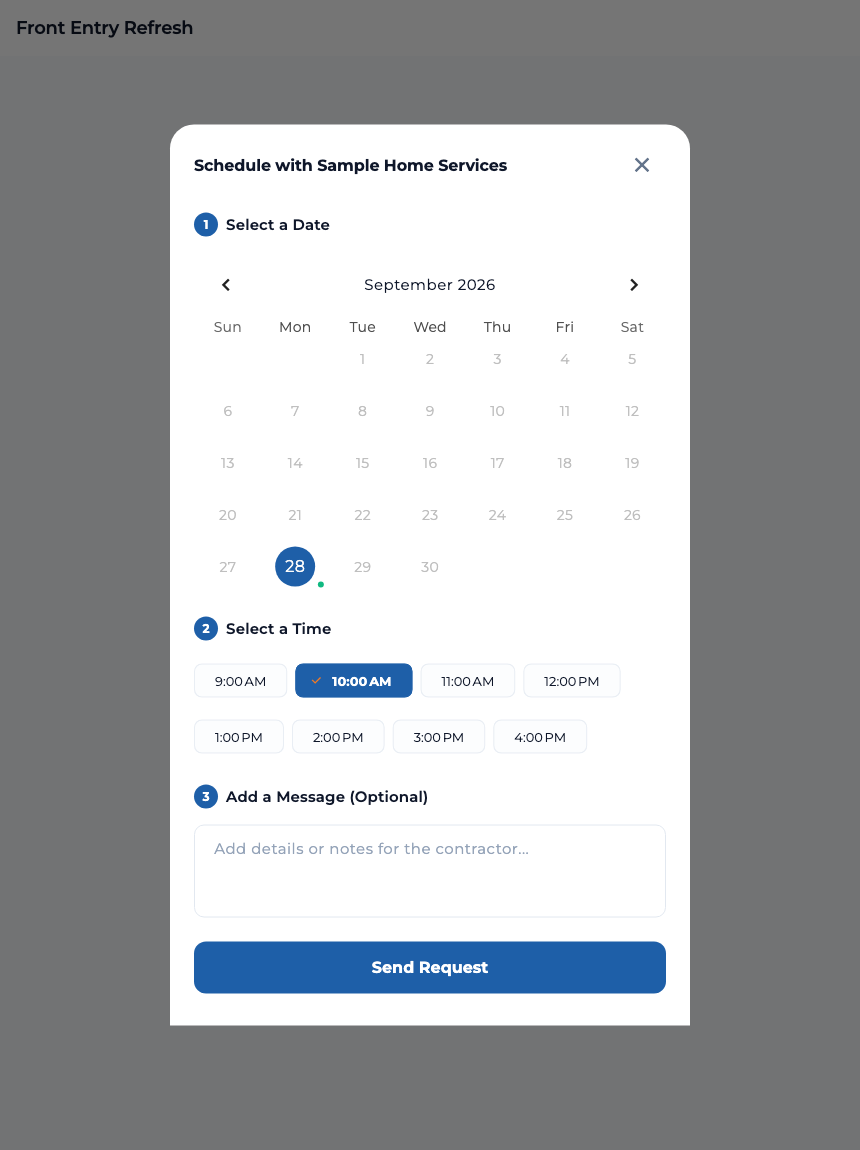
You can also ask to meet someone from a team you have worked with before without starting a project first. That request includes a location, along with an optional message. Requests and accepted meetings stay visible in TaskTied.
For contractors
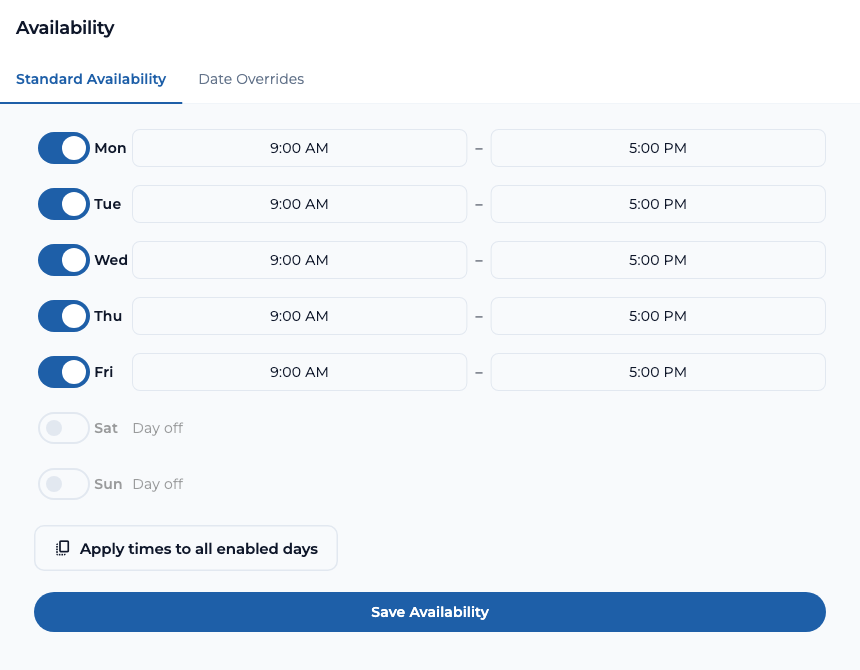
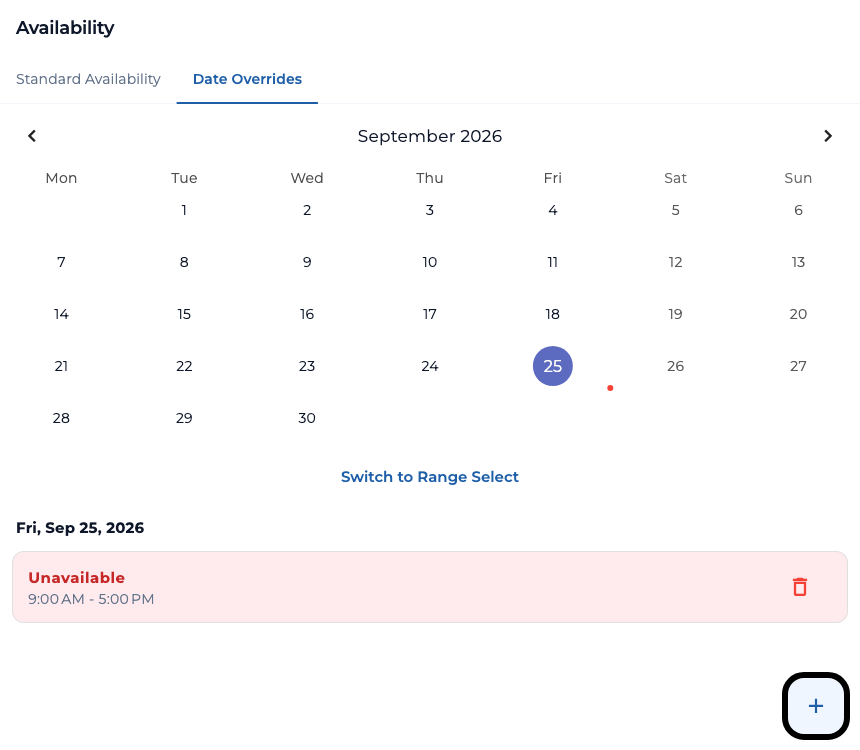
Set your usual weekly hours in Standard Availability. Turn individual days on or off, change the start and end times, and save the schedule. Date Overrides let you add or remove availability for specific dates, such as a holiday or an extra working day. You can select one day or a date range.
From a project, you can also propose an appointment with its assigned client. Choose a date and time and include an optional note. The proposed appointment is sent as a request connected to that project.
When a client sends an appointment request, review the date, time, and any note, then accept or decline. TaskTied keeps pending requests separate from accepted meetings so you can see which visits still need a response.
Stay on top of appointments
The appointment calendar highlights days with visits and shows the selected day’s details. Open an appointment to see the other person, time, and any location or message.
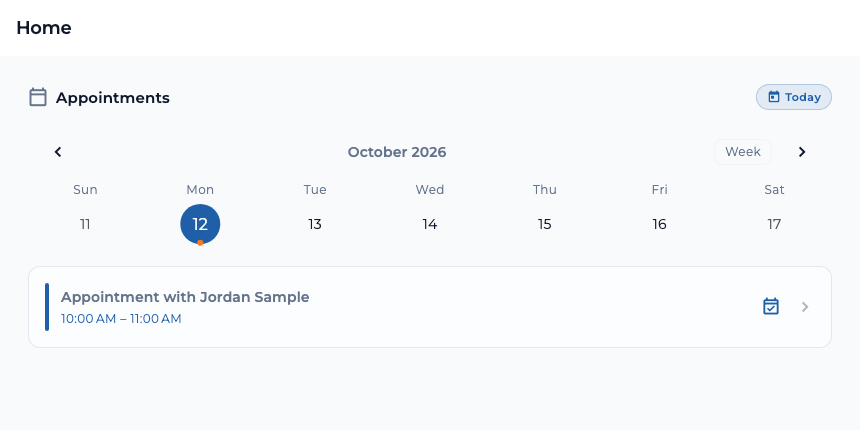
Use Add to Google Calendar on an appointment to open a Google Calendar event with its details filled in. Review the event and save it to the Google account and calendar you choose. This is a one-time add, so later changes in TaskTied do not automatically update the Google Calendar event.
Choosing an open slot sends an appointment request. It becomes a confirmed appointment after the contractor accepts.